In Agents Don’t Travel Well I called pasting screenshots into a remote Claude Code session my biggest day-to-day gripe with the whole setup. The clipboard lives on the laptop in front of me. The session lives on the Mac Studio at home. Copy an image, switch to the tmux pane, hit paste, and nothing lands. I closed that section with “if you’ve solved this, please find me.” I solved it myself a while ago and never wrote it up. The fix is one Alfred hotkey and about thirty lines of shell, and it has been smooth enough since that I stopped thinking about it.
The Clipboard Was Never Going to Cross
The workaround I described back then was dropping the screenshot into a synced folder and pasting the path, which is fine for one image and miserable by the tenth. What made it painful was never the syncing. It was the manual steps in between: take the capture, find the file, wait for the sync, then work out what that file’s path looks like on the other machine. Four small frictions per image, multiplied by every image.
The fix came from restating what the session needs. Claude Code can Read any file on the machine it runs on, images included, and an image file read from disk lands in the conversation the same as a pasted one. So the session needs two things: the file on its own disk, and the path in the prompt. The path is text, and text pastes across SSH just fine.
The automation moves the file to where the session lives, then hands me the remote path. Ship the file, paste the path.
One Hotkey, Two Things Cross
⌘⇧0 fires an Alfred workflow whose only job is to run a script. The screenshot ships to the Studio over the tailnet, the path to it crosses back as text on the clipboard, and the two meet at the session.
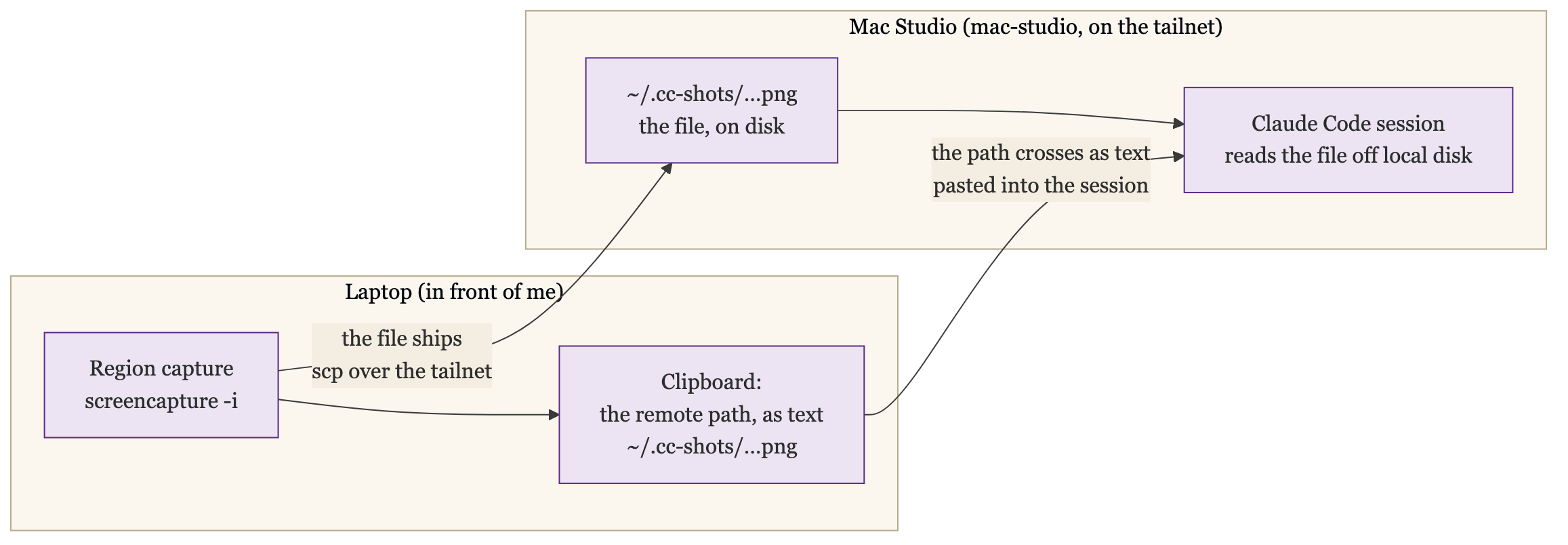
From my side it feels like a native screenshot. Hit the hotkey, drag a rectangle, and by the time I’ve switched to the tmux pane the path is on the clipboard. Paste it into the conversation, Claude reads the image off its own disk, done. Ten screenshots is ten hotkeys at a few seconds each, which in practice is the difference between describing an error dialog in words and just showing it.
Here is the script:
#!/bin/zsh
set -euo pipefail

# The Studio answers to one MagicDNS name from anywhere on the tailnet.
HOST="mac-studio"
REMOTE_DIR=".cc-shots"

ts="$(date +%Y%m%d-%H%M%S)"
# mktemp creates an empty stub; screencapture writes the .png alongside it.
# Trap cleans both even on ESC / empty / unreachable-Studio exits.
tmp_base="$(mktemp -t ccshot)"
tmp="${tmp_base}.png"
trap 'rm -f "$tmp_base" "$tmp"' EXIT

# ESC during region select returns success with an empty file.
screencapture -i "$tmp" || exit 0
[ -s "$tmp" ] || exit 0

# The mkdir doubles as the reachability check: if the Studio isn't on the
# tailnet, this fails and we bail before touching the clipboard.
if ! ssh -o ConnectTimeout=5 -o BatchMode=yes "$HOST" "mkdir -p $REMOTE_DIR"; then
  osascript -e 'display notification "Mac Studio unreachable over the tailnet" with title "CC screenshot" sound name "Basso"'
  exit 1
fi

scp -q "$tmp" "$HOST:$REMOTE_DIR/$ts.png"
printf '~/%s/%s.png' "$REMOTE_DIR" "$ts" | pbcopy

osascript -e 'display notification "Path copied — paste into Claude Code" with title "CC screenshot"'
The Alfred side is two nodes, a hotkey trigger wired to a script action, exported to a .alfredworkflow file so it survives a laptop rebuild. The only prerequisites are a Studio reachable at its MagicDNS name and the Screen Recording permission screencapture needs.
The Details That Matter
The path lands on the clipboard as ~/.cc-shots/<timestamp>.png with a literal tilde, and that is deliberate. The tilde belongs to the Studio’s shell, where Claude Code will expand it, and to nothing on the laptop. Expanding it laptop-side would produce a path into the wrong home directory on the wrong machine.
Every SSH call runs with BatchMode=yes, so there is no password fallback anywhere. If auth breaks or the Studio is off the tailnet, the SSH call fails and the script tells me the Studio is unreachable instead of hanging on a prompt no one will ever see inside an Alfred action.
ESC during region-select exits silently: success code, empty clipboard, no notification. So does a zero-byte capture. Both are deliberate, because the alternative is a stale path on the clipboard pointing at a screenshot that does not exist, which is a worse bug than a hotkey that sometimes appears to do nothing. It reads as broken the first time. It is the correct behavior every time after.
One Alfred quirk worth knowing: the hotkey binding does not travel with the exported workflow file. Alfred zeroes it on export, so after a fresh import the workflow exists but fires nothing until the key is rebound by hand.
What It Doesn’t Fix
This is a fix for exactly one topology: macOS laptop in front of me, macOS server running the session, Alfred with a Powerpack license in between. screencapture, pbcopy, and osascript are all Mac-isms. The pattern ports anywhere, any launcher or keybinding daemon can run a script that captures, ships, and puts a path on a clipboard, but the script itself does not.
It is also still one screenshot per hotkey. Ten images into one conversation is ten capture-paste cycles, quick ones, but a “share this whole folder” flow does not exist yet, and a genuinely bidirectional clipboard does not either. Files the session produces still come back to me over the sync-folder route from the original post.
And it is one more piece of personal infrastructure. The note documenting it in my vault carries a new-laptop checklist for a reason: an unbound hotkey, a missing script, or an expired SSH key each silently turn the automation into nothing. Small tools like this are cheap to build and easy to forget you depend on.
One Name, From Anywhere
The script reaches the Studio at a single hostname, mac-studio, and that one name works whether I’m home or on hotel wifi because it’s a MagicDNS name on the Tailscale overlay I moved the house onto. It was not always one name. An earlier version of this script probed a LAN hostname first, on a three-second timeout, then fell back to a Cloudflare tunnel hostname when I was away from home, a small two-host dance every capture had to run. Consolidating onto the overlay deleted the dance: one name that resolves from anywhere, no LAN probe, no fallback branch. The automation got shorter because the layer underneath it got simpler. That is what a good consolidation does, and this hotkey is the smallest, most concrete example of it I have. Ship the file, paste the path, over one overlay that does not care where the laptop is.